Save Disk Space, Less Compression Time and Retain Original Appearance
Saving disk space and time using compression.
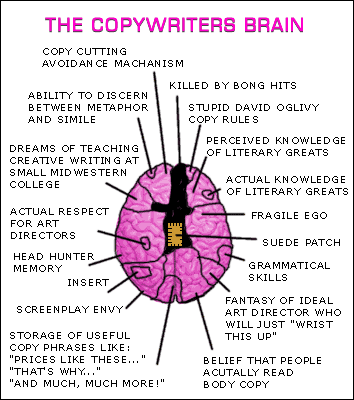
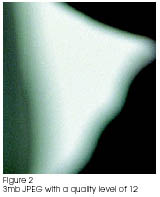
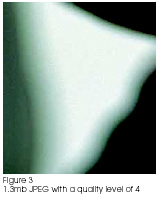
When working with images there are multiple ways you can save them. Choosing the correct format for the application can save you time, space, and ultimately money. Below is an image that is 18mb when saved as a TIFF file without any compression, but when saved as a JPEG at the maximum quality setting, it is only 3mb. JPEG is a lossy compression, but when used correctly the results are astounding. If you compare the images below you will see there is no quality differences between Figures 1 and 2, but Figure 2 is extremely smaller because of JPEG compression. In Figure 3 the data being discarded is fairly noticeable because of the low quality level selected.
 When JPEG compression is used with the correct quality settings your files will be much smaller and still retain their original appearance. Smaller file sizes will mean faster printing, less time archiving and moving files around the network. Consider this, using JPEG compression with these settings would reduce your disk space usage by nearly 60%, this also translates into two to three weeks of time saved each year performing various other tasks with your images.
If you prefer not to use a lossy compression you can use a loss less compression and reduce a files size, still saving some time and money. The same 18mb file when saved as a TIFF with LZW compression is only 12mb and when the file is saved in a PSD (Photoshop) format, it is only 8.5mb. Further down you will see step by step instructions with screen captures to show you how to save your images in these different formats using Adobe Photoshop.
Lossy Compression
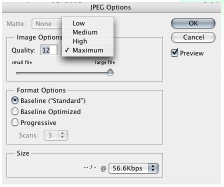 To save your files in a JPEG format, select Save As from the File menu. Then select JPEG, choose where to save the file and click on Save. Choose your options in the JPEG Options dialog box. It is best to set the Quality level to 12 and select Basline (Standard). Figure 1 on the previous page shows samples of the different Quality options used.
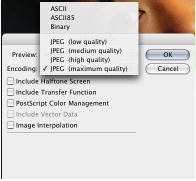 To save your files in an EPS format with JPEG compression, select Save As from the File menu. Then select Photoshop EPS, choose where to save the file and click on Save. Choose your options in the EPS Options dialog box. It is best to set the Encoding to JPEG (maximum quality).
Lossless Compression
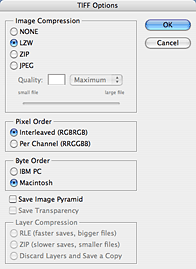 To save your file in a TIFF format, select Save As from the File menu. Then select TIFF, choose where to save the file and click on Save. It is best to choose LZW from the Image Compression options. Leave everything else as the default, unless you are on a Windows platform, then choose IBM PC for the Byte Order. To save your files in a PSD (Photoshop) format, select Save As from the File menu. Then select Photoshop, choose where to save the file and click on Save.
Referrals are greatly appreciated. If you know someone who I should contact, please let me know.
If you would like to join me on one of our upcoming tours, if there is something that you would like me to address, or if you know of someone who might like to receive TK's Korner, please let me know via e-mail at tkubinski@sextonprinting.com or phone.
Take care and have a great day.
Successfully,
 Tom Kubinski-Printing Consultant